FOM Validation
Validation checks that an object model is well-formed and standard-compliant before you export it or hand it to an RTI. Catching problems in SimGe is far cheaper than discovering them at federation start-up.
What validation checks
Validation confirms that the generated XML document conforms to the official IEEE 1516 XML schema (.xsd) for the chosen standard, schema profile, and module-composition scope.
Standards and schema profiles
Schema validation applies to the two IEEE 1516 standards. For each standard you can validate against any of three schema profiles:
| Schema profile | Validates |
|---|---|
| OMT | The base Object Model Template document. |
| FDD | The FOM Document Data (the form an RTI consumes). |
| DIF | The Dependency/Interface document. |
| Standard | Schema profiles available |
|---|---|
| IEEE 1516-2010 | OMT, FDD, DIF (2010 .xsd files) |
| IEEE 1516-2025 | OMT, FDD, DIF (2025 .xsd files) |
HLA 1.3 (FED) is not schema-validated. The legacy
.fedformat has no XML schema, so the FED viewer offers no Validate action - only copy and export.
Running validation
Validation is performed in the FDD viewer (the FDD Viewer (2010) / FDD Viewer (2025) tab of a module's OME). Three toolbar selectors control it:
- The standard selector - IEEE 1516-2010 or IEEE 1516-2025 (this also picks which viewer/document you see).
- The schema selector - DIF, FDD, or OMT.
- The scope selector - Standalone module or Composed dependency closure.
The default schema profile is DIF and the default scope is Standalone module. The scope selector changes the validation input; it does not switch the viewer's export to a composed document. See Importing & Exporting.
Click Validate to check the document against the selected standard + schema profile + scope. Changing any selector re-targets validation, so you can verify the same model against several schemas and module-composition scopes. Validation also runs automatically during import, so problems in a source file are reported as it is read (see Importing & Exporting).
Because SimGe authors models as modules, scope matters:
| Validation scope | Use when |
|---|---|
| Standalone module | You want to validate the selected module's XML by itself. XML Schema key/keyref checks are document-local, so dependency-owned data types may fail here even when the project dependency closure is complete. |
| Composed dependency closure | You want to validate the merged model that export and code generation rely on. Dependency-owned data types are included before the schema check runs. |
If standalone validation fails with a data-type keyref error but the type is available in a loaded dependency module, the report adds a Dependency-Closure Advisory section naming the modules that define the missing type.
Reading the results
The viewer's status bar keeps a Validation Status of not run, running, valid, failed, or needs dependencies. For needs dependencies, inspect the dependency-closure advisory and retry with composed validation after checking the named modules. Always read the selected scope together with the status.
Validation results open in a dedicated results window:
- A clean run reports success.
- Problems are listed with enough detail to locate them (the offending element and the rule or schema constraint involved).
- Common errors include a What to do: hint suggesting the next edit or dependency check.
- The window is color-coded by outcome so you can tell success from warnings and errors at a glance.
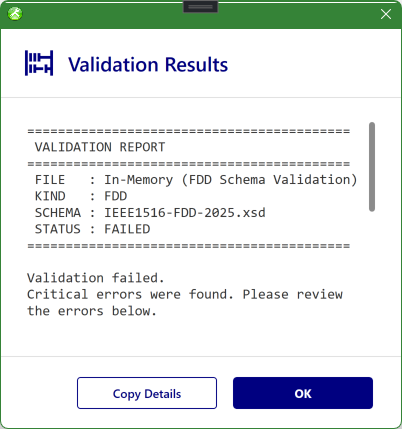
The validation results for an FDD document. The report header records the FILE, KIND (FDD), the SCHEMA it was checked against (here IEEE1516-FDD-2025.xsd, set by the FDD viewer's toolbar selector), and the STATUS (FAILED). Findings are listed below the header, and Copy Details copies the full report to the clipboard.
The report footer records the validation Scope and the module list used for the check. For composed validation this module list is the dependency closure; for standalone validation it is the selected module.
Work through the listed items, fix them in the OME, and re-validate until the model is clean.
Common issues and fixes
| Symptom | Likely cause | Fix |
|---|---|---|
| Unresolved dependency warnings | A referenced module is missing or its name does not match. | Add or relink the module; see Managing Modules and Modular FOM Concepts -> Dependencies. |
| Schema errors on export | A field required by the chosen standard is empty or malformed. | Complete the required fields in the relevant OME table, then re-validate. |
| Datatype keyref errors in Standalone module scope | The selected XML document references a dependency-owned data type that is not defined inside the same XML document. | Use Composed dependency closure validation, or export/validate a composed module. If the advisory names a loaded module, the dependency closure resolves the type. |
| Datatype / reference errors in Composed dependency closure scope | An element points at a datatype or parent that no longer exists in the full dependency closure. | Add or relink the defining module, or repoint the element in the OME to a valid target. |
| FomMergeConflictException or merge errors | Same-named OMT content differs in definition across modules. | Align the conflicting definitions across modules, or rename one when the standard permits distinct definitions. |
When to validate
- Before exporting a FOM for an RTI.
- After a large edit or a merge of modules.
- After importing, to confirm the upgraded model is clean.
Next: FOM Dashboard
Updated September 14, 2026