FOM Dashboard
The Module Analysis Dashboard gives a quantitative, at-a-glance view of a model — its size, structure, semantics, and quality — so you can assess an object model without reading every table. It opens as the Dashboard tab of a module's Object Model Editor, and a Composed / Module Only toggle lets you analyze the merged composition or just the selected module.
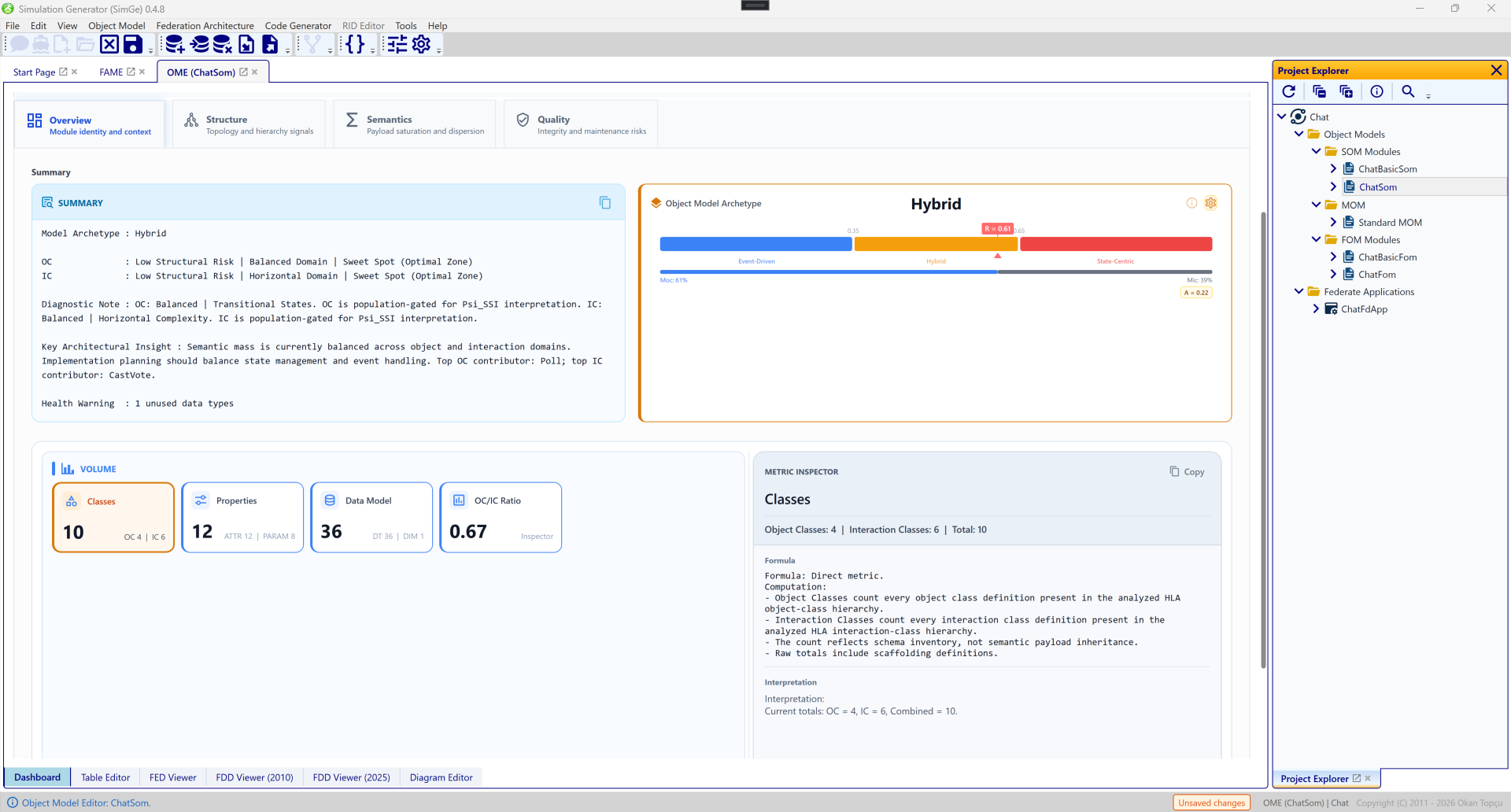
The dashboard's Overview tab. It reports the object-model archetype (here "Hybrid"), a written summary of the model, and headline metric cards — class count, property count, datatype count, and the OC/IC ratio — alongside an Object Model Archetype gauge.
The dashboard tabs
The dashboard is organized into four tabs:
| Tab | Shows |
|---|---|
| Overview | Module identity and context — archetype, summary, and the headline counts (classes, properties, datatypes, OC/IC ratio). |
| Structure | Topology and hierarchy signals — max depth and breadth, class complexity, and architectural metrics (e.g. WHL, S_top, CV_D) — with an Architecture Shape matrix and a Structure Heat Map. |
| Semantics | Payload saturation and dispersion — the Semantic Saturation Index (SSI_n) and coefficient of variation (CV_p) for each domain — with a saturation gauge. |
| Quality | Integrity and maintenance risks — unresolved type references, diagnostic findings, and warnings. |
Most figures are computed separately for the Object Class (OC) and Interaction Class (IC) domains. The dashboard and reports share an analysis engine; compare the same model, scope, and calibration settings.
For structural metric definitions and the published methodology, see Model Metrics & Reports — Metric definitions and published reference. The dashboard provides interactive inspection and calibration of those indicators.
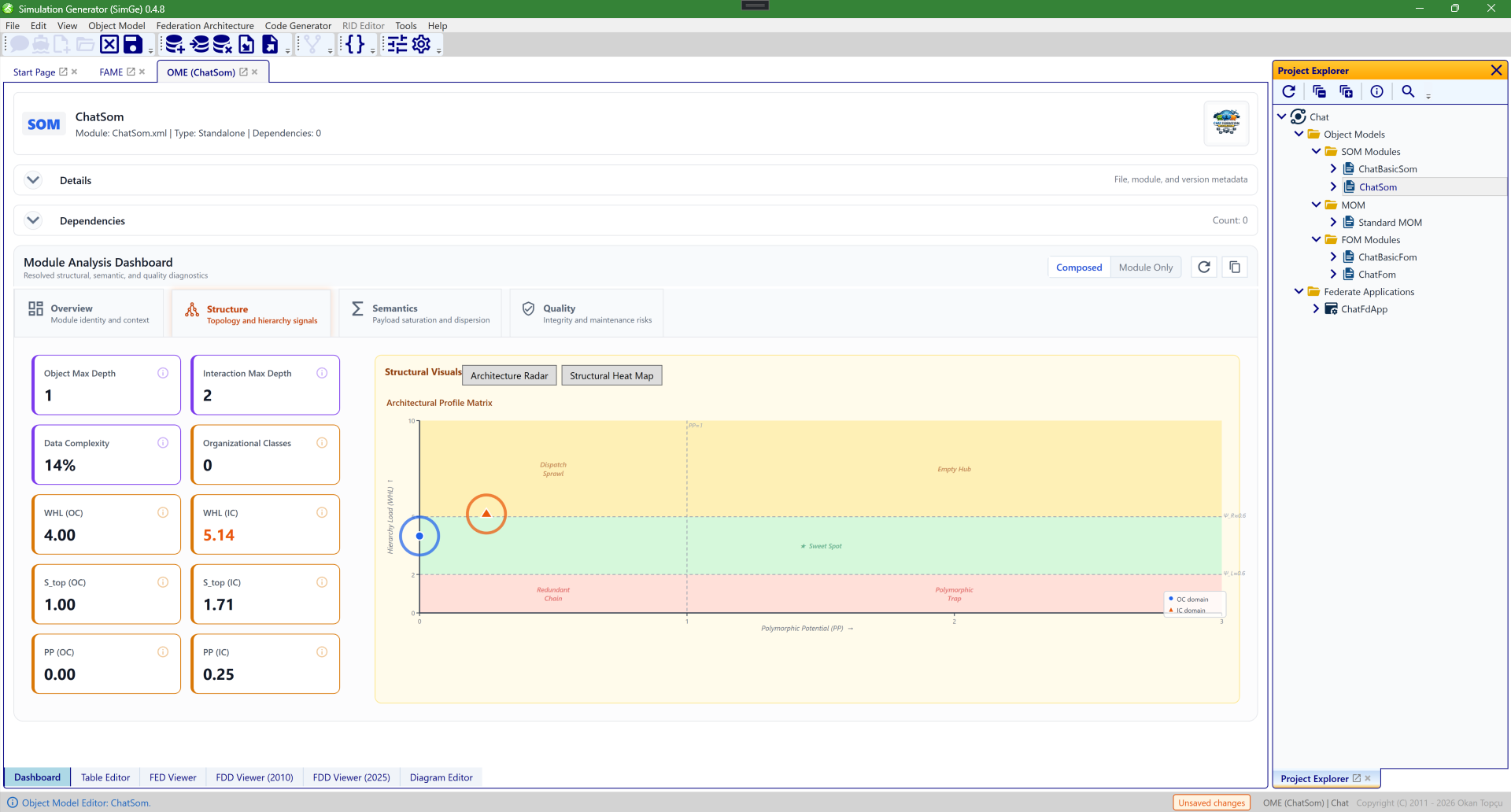
The Structure tab. It surfaces topology and hierarchy signals — object max depth and breadth, class complexity, and architectural metrics such as WHL(OC), S_top, and CV_D — and visualizes the model's "structured shape" via an Architecture Profile Matrix (with an alternate Structure Heat Map view).
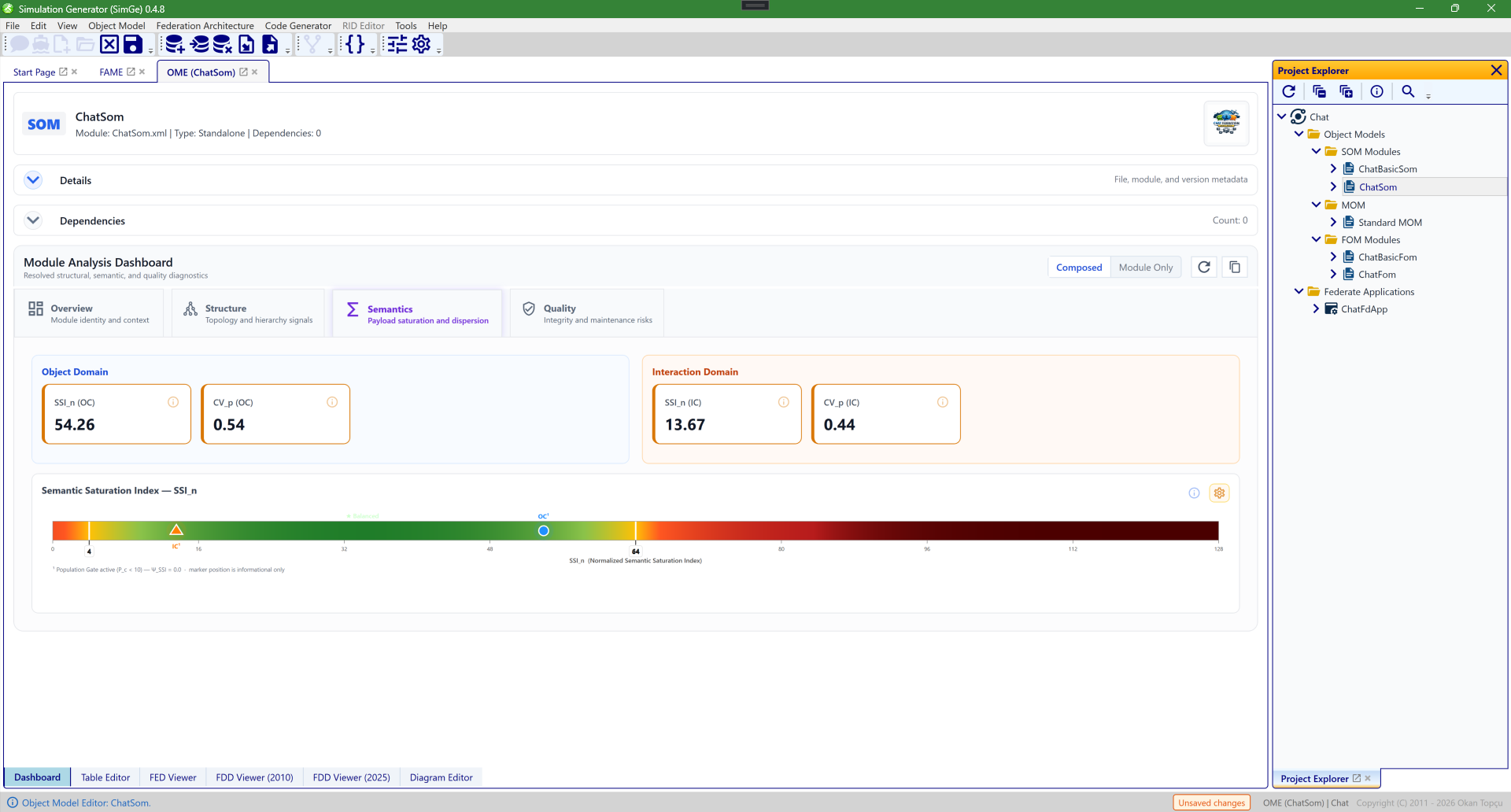
The Semantics tab. It characterizes payload saturation and dispersion rather than raw counts: the Semantic Saturation Index SSI_n and dispersion CV_p are shown for both the Object and Interaction domains, with a Semantic Saturation Index gauge. These signals feed metric-driven code generation.
Toolbar actions
The dashboard toolbar lets you refresh the analysis, copy the summary or the full textual report to the clipboard, and toggle between Composed and Module Only scope.
In the Structure tab, the Structural Visuals panel includes an image export button. The export captures the full framed Structural Visuals panel, not only the chart canvas. For the Heat Map view, the PNG includes the panel heading, visual selector, heatmap, axes, color scale, guide lines, and OC/IC markers. If the calibration tools are open, the calibration panel is included in the exported image as well; if they are closed, only the visible Structural Visuals content is exported.
The heat map's OC and IC markers support two levels of inspection. Hover over a marker for a compact tooltip, or click/right-click it to open Metric Details. The details popover shows the same domain, coordinates, propensity breakdown, structural condition, engineering guidance, and gate notes in selectable text, with a Copy button that places the Markdown/plain-text version on the clipboard.
Read the marker header as the post-gate profile. A small hierarchy can have a raw coordinate on the horizontal anchor, but the minimum population gate can suppress the final horizontal and compound propensity; in that case the marker is reported as Sweet Spot - Low Risk. Moderate horizontal propensity is reported with the paper's transitional profile terminology, for example Broad Concrete (Transitional) - Moderate Risk.
How to read it
- Start on Overview to grasp the model's archetype and scale.
- Check Quality for anything flagged — resolve unresolved dependencies, unresolved data type references, and structural issues first (see Managing Modules and FOM Validation).
- Use Structure and Semantics to judge whether the model's shape and payload profile match your intent.
- Refresh after edits to see the effect.
The archetype gauge's Domain Dominance (A) describes distance from a balanced semantic-mass profile, not confidence in the assigned archetype. Read R and the archetype label for which domain dominates. A Hybrid model can therefore have low dominance without indicating an unreliable classification.
Use the Composed scope to analyze the merged result that will actually be exported; use Module Only to focus on the selected module's own content.
Integrity findings
The Quality tab reports unresolved data type references when an attribute, parameter, or structural data type still carries a preserved XML type name that cannot be resolved to a concrete data type in the selected analysis scope.
- In Module Only scope, these rows may indicate dependency-owned types that are intentionally supplied by another module.
- In Composed scope, remaining rows indicate an incomplete dependency closure and must be resolved before reliable code generation.
When no unresolved type references remain, the Unresolved Type Refs card states whether the clean result applies to the standalone module scope or to the composed dependency scope. This is separate from XML schema validation: standalone XML validation may still fail document-local keyref checks for dependency-owned types; use FOM Validation with Composed dependency closure scope to validate the merged model.
The Unresolved Type Refs card gives the count. The Integrity Findings table lists the severity, scope, owner, member, reference kind, and missing type so the affected element can be located directly.
Use the copy button in the table header to place the findings on the clipboard as GitHub-flavored Markdown. The copied text starts with the active module name and then includes the findings as a Markdown table, which is suitable for issue reports, review notes, and release validation records.
Next: Model Metrics & Reports
Updated September 14, 2026