Creating a Project
A SimGe project (a .fap file plus its folders) holds your object models, federation design, and settings. The fastest way to start one is the New Project wizard.
Starting the wizard
Open the wizard from any of:
- The SimGe — Get Started dialog → Create New Project.
- The application menu / toolbar New Project command.
The wizard has four steps. Use Next / Back to move between them; the final step creates the project on disk.
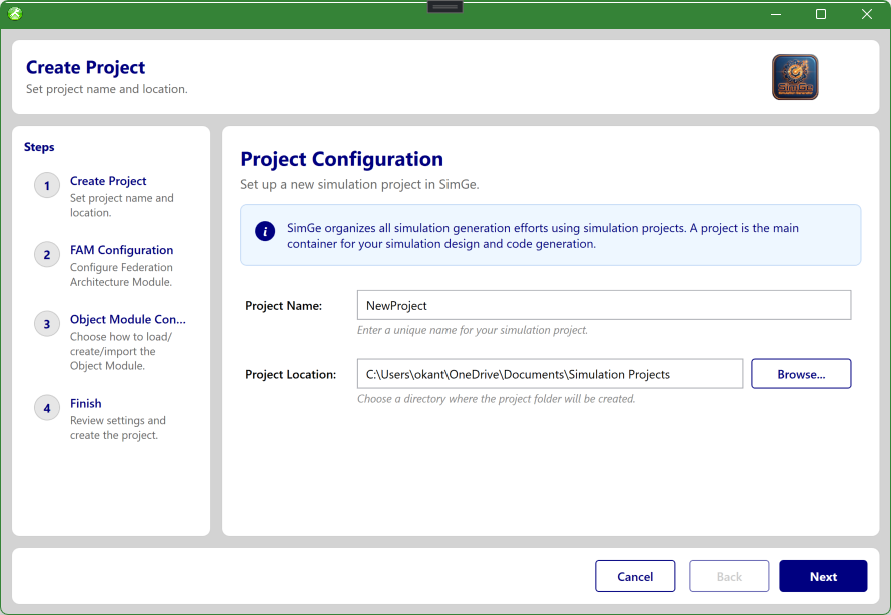
The New Project wizard. The step rail on the left tracks progress through the four steps, the center pane shows the current step's form, and Back / Next (with Create on the final step) move between them.
Step 1 — Create Project
Set the project's identity and location.
| Field | Description |
|---|---|
| Project Name | Required. Also used for folder and file names, so avoid characters that are invalid in file names. |
| Project Location | Required. The root folder under which the project folder is created. Use Browse… to pick it. |
SimGe creates the project at ‹Project Location›\‹Project Name›.
Step 2 — FAM Configuration
Seed the federation architecture. Choose one mode:
| Mode | What it sets up |
|---|---|
| Federation Execution | Creates the FAM with a single federation execution name (default NewFedExec). |
| Federate Applications | Lets you add a list of federate application names up front. Each name must be a valid identifier (no spaces or hyphens) and unique. |
| Skip | Creates no FAM seed now; you can design it later in FAME. |
You can always refine the federation later in the FAME workspace — this step is just a starting point.
Step 3 — Object Module Configuration
Decide how the project's initial object model is created. Choose one mode:
| Mode | What it does |
|---|---|
| Create FOM Module (default) | Starts an empty FOM module named after the project. |
| Load Object Model | Loads an existing SimGe object model index (.fom). |
| Import HLA 1.3 FED | Imports a legacy .fed file. |
| Import HLA 1516-2010 FDD | Imports a 2010 FDD (.xml). |
| Skip | Creates no object model now; add modules later. |
For the import/load modes, use Browse… to select the source file. Imported models are brought into SimGe's modular representation (and can be upgraded to IEEE 1516-2025). See Importing & Exporting for the full import behavior.
Step 4 — Finish
Review the summary of your choices, then click Create.
SimGe then:
- Creates the project folder structure — the project home plus the Fom, Source, and Fam subfolders.
- Applies the object-model choice from Step 3.
- Applies the FAM seed from Step 2.
- Adds the project to the workspace and opens it.
Overwrite guard: if the target folder already exists and is not empty, SimGe asks for confirmation before replacing its contents. Choose a different name/location if you do not intend to overwrite.
After the wizard
The new project opens with the Project Explorer populated. Typical next steps:
- Edit your module(s) in the Object Model Editor.
- Add more modules — see Managing Modules.
- Design federate applications in FAME.
- Save your work (see Opening & Saving Projects).
Next: Opening & Saving Projects
Updated June 25, 2026, 16:28:09