Preferences & Options
Application preferences control SimGe's start-up behavior and the recent-projects list. They apply to the whole application, independent of any open project.
Opening Preferences
Open the Preferences workspace from the application. Preferences are grouped into sections you select on the left.
Startup
Control what happens when SimGe launches and how a project opens.
| Setting | Effect |
|---|---|
| Reopen last project | When enabled, SimGe reopens the most recently used project on launch instead of starting empty. |
| Show Explorer on startup | Shows the Project Explorer panel automatically when a project opens. |
| Show Properties on startup | Shows the Properties panel automatically when a project opens. |
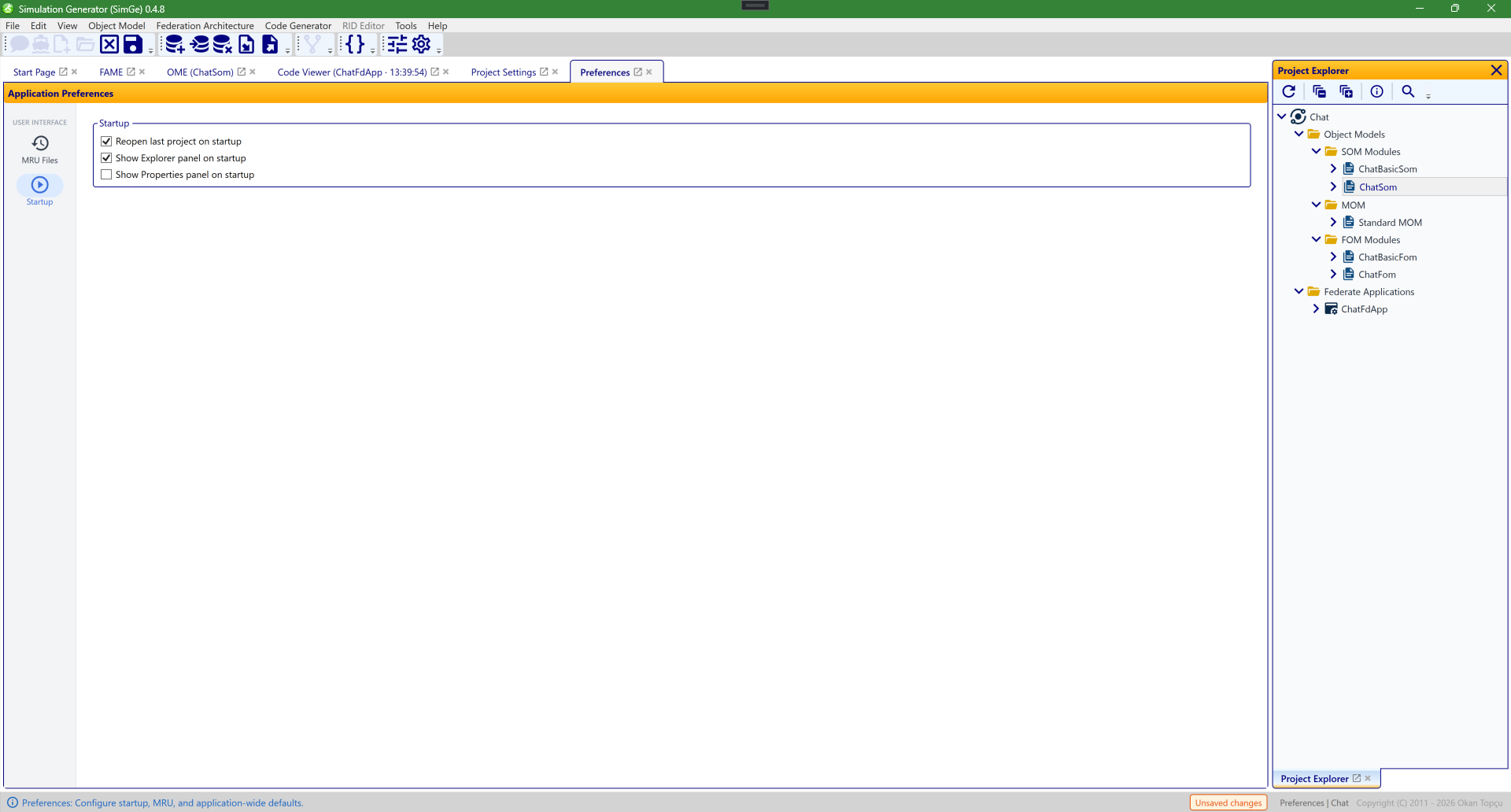
The Startup section of Preferences. Toggle whether SimGe reopens your last project on launch and whether the Project Explorer and Properties panels appear automatically when a project opens. Sections are selected from the list on the left.
Recently used projects (MRU)
| Setting | Effect |
|---|---|
| Maximum recent files | How many recent projects SimGe remembers and lists in the Get Started dialog and menus. |
The recent-projects (MRU) list itself is stored in the same preferences file (see below), so it is kept per-user alongside your other settings. See Opening & Saving Projects for how the recent list is used.
How preferences are stored
Preferences — including the recent-projects (MRU) list — are saved as you change them to a single per-user JSON file:
Keeping everything in one per-user store has two benefits: it is always writable (no machine-wide permission issues, unlike the read-only sample location under ProgramData), and it reuses the same robust write path:
- Atomic writes — settings are written to a temporary file and then swapped into place, so a crash or full disk cannot leave a half-written file.
- Corruption recovery — if the file cannot be read, SimGe backs it up as
.corrupt-{timestamp}, alerts you, and starts from clean defaults. Reapply your preferences; the backup is kept beside the file if you want to inspect it.
Default options
SimGe ships with a DefaultOptions.xml in its installation directory that seeds default settings. It is loaded from the install location regardless of where SimGe is launched from, so defaults are consistent.
Theme switching (light/dark) and panel layout are controlled from the application shell itself, not from this Preferences surface.
Next: Keyboard Shortcuts & Tips
Updated June 25, 2026, 16:28:09