Start Page
The Start Page is the landing workspace for opening projects and reviewing project metadata. It opens automatically at startup and stays available as a workspace tab.
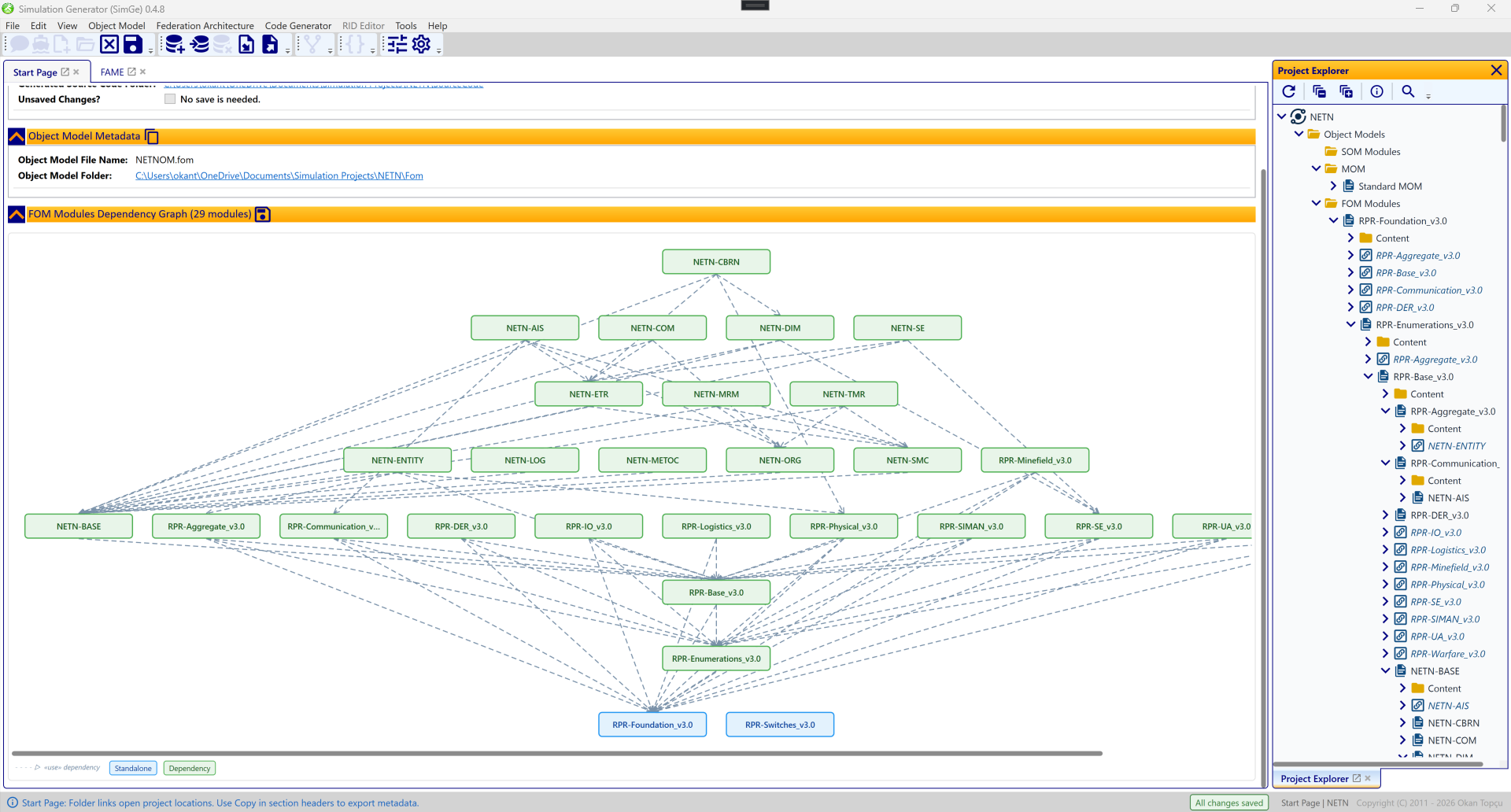
The Start Page for the NETN sample. The metadata panels at the top summarize the project and its object model (with Copy buttons and folder links), while the FOM Modules Dependency Graph below visualizes all 29 modules. Dashed «use» arrows point from each module to the modules it depends on, with the standalone base modules (e.g. RPR-Foundation, RPR-Switches) at the bottom of the hierarchy.
Opening projects from the Start Page
The Start Page complements the SimGe — Get Started dialog:
- Recent projects — reopen a project you used recently.
- Open a project — browse for an existing
.fapfile. - Bundled samples — open the Chat or STMS sample to explore SimGe.
See Opening & Saving Projects for the full open/save behavior.
FOM Modules Dependency Graph
The Start Page hosts a dependency graph that displays the relationships between the FOM modules in your project.
- Visualization: Shows base and dependent module links, so you can see at a glance which modules build on which.
- Missing-file indicators: A module whose backing files are missing on disk is flagged with a red warning badge; hover it to see what is missing. (See Project Explorer → Recovering Missing Module Files.)
- Export: The graph can be saved as an image file for external documentation.
How to read the graph
| Aspect | Detail |
|---|---|
| Layout | Dependent modules sit at the top (higher layer); base/root modules sit at the bottom — the standard UML component-diagram convention. |
| Arrow direction | A → B means A depends on B: the arrow runs downward from the client (top) to the supplier (bottom). |
| Line style | Dashed (5, 3 dash pattern). |
| Arrowhead | An open chevron (▷) drawn as two separate, unfilled lines — a true UML open arrowhead. |
| Edge color | Normal dependencies are muted blue-grey (#7890A8); unresolved (orphan) dependencies are red (#C62828). |
| Node color | By module role — Standalone (blue), Dependency (green), Composed From (orange), Standard (grey). A module with unresolved dependencies gets a red border. |
«use» stereotype |
Shown once in the legend, not on each edge, to keep the graph readable. |
| Tooltip | Hovering a node shows its FOM name, type, file, fan-out (modules it depends on), fan-in (modules that depend on it), and any unresolved dependency names. |
| Hover highlight | Hovering a node highlights its dependency chain — ancestors (what it depends on) in navy, dependents (what depends on it) in orange — and dims everything else. |
| Legend | An edge-notation chip (- - - - ▷ «use» dependency), one colored chip per module role present, and — when any exist — a red ⚠ Unresolved dependency chip. |
The general diagram interaction model (pan, zoom, selection, mini-map) is described in Diagram Editor.
Metadata panels
The Start Page summarizes the open project's metadata in two panels:
- Project metadata — project name, home folder, the object-model and FAM folders, and whether the project has unsaved changes.
- Object-model metadata — the object-model index file name and its folder.
Each panel's header has a Copy action that copies the table to the clipboard as plain text, handy for sharing or pasting into notes.
Folder shortcuts
The Start Page exposes quick links to the project's key folders — project home, FOM, FAM, and source — opening them directly in Windows Explorer.
Next: Creating a Project
Updated June 25, 2026, 16:28:09