Installation & Updates
SimGe is distributed as a Windows installer (.msi). This chapter covers installing, updating, repairing, and removing it.
System requirements
| Requirement | Notes |
|---|---|
| Operating system | Windows 10 or Windows 11 (64-bit). SimGe is a WPF desktop application and runs on Windows only. |
| .NET runtime | .NET 10 Desktop Runtime (x64). The installer is framework-dependent, so the runtime must be present. If it is missing, install it from Microsoft's .NET download page. |
| Disk space | A few hundred MB, including the bundled sample projects. |
Installing
- Download the latest installer: SimGe.msi.
- Run
SimGe.msiand follow the prompts. - When finished, SimGe is available from the Start menu.
The installer also:
- Registers the
.fapfile association, so double-clicking a project file opens it in SimGe. - Installs the bundled sample projects under
C:\ProgramData\SimGe\Samples(read-only — see below).
The download link always points to the current release, so bookmarks and shortcuts keep working across updates.
First launch
On first launch the SimGe — Get Started dialog appears. From here you can create a new project, open an existing one, or open a bundled sample. See the Quick Start for a guided first session.
Sample projects are read-only
The bundled samples live in a shared, machine-wide location (C:\ProgramData\SimGe\Samples) that standard users cannot modify. As a result, Save is disabled for a sample. To keep changes, use Save As to store an editable copy in a writable folder such as your Documents. See Opening & Saving Projects.
Updating
To move to a newer version, download the latest SimGe.msi and run it. The installer performs a major upgrade — it replaces the previously installed version in place. Your own projects (saved outside the install location) are untouched.
To check which version you currently have, open Help → About.
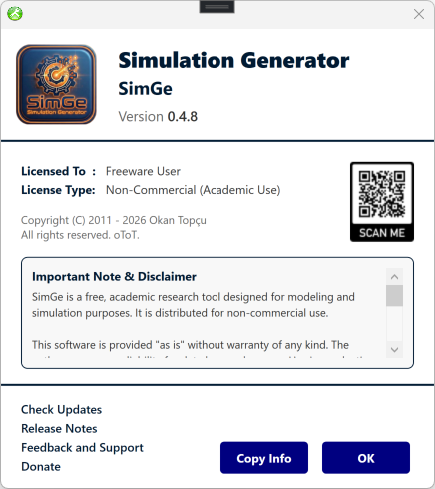
The About dialog (Help → About) shows the installed version (here 0.4.8), the license type (Non-Commercial / Academic Use), and copyright. Its links — Check Updates, Release Notes, Feedback and Support, and Donate — and a Copy Info button are handy when reporting an issue or confirming you are on the latest release.
Repairing or removing
Use Windows Settings → Apps → Installed apps → SimGe (or the classic Control Panel → Programs and Features):
- Modify / Repair — restores missing or changed program files, including the bundled sample files. Use this if a sample's files are reported missing.
- Uninstall — removes SimGe. Projects you saved elsewhere are not affected.
If SimGe reports a sample module's files as missing, a Repair SimGe hint is offered in the recovery dialog. See Troubleshooting and Project Explorer → Recovering Missing Module Files.
Next: Quick Start: Your First Project
Updated June 25, 2026, 16:28:09